

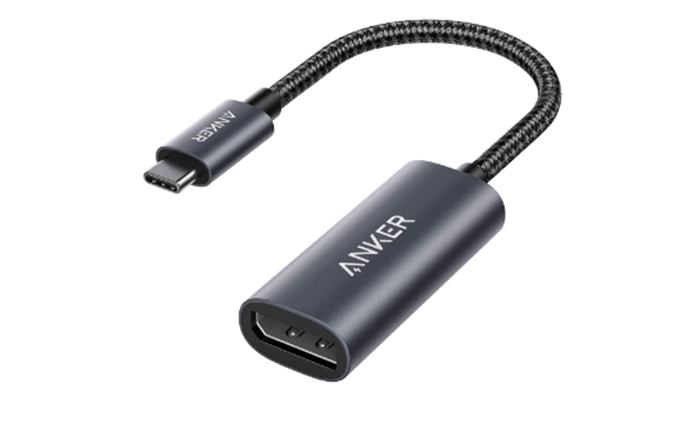
In the ever-evolving landscape of technology, the need for connectivity and versatility remains paramount. USB to HDMI adapters serve as a bridge between devices, allowing seamless transmission of audio and video signals from a USB-enabled device to an HDMI display. Whether you’re aiming to connect your laptop to a projector for a presentation or extend your desktop to a secondary monitor, understanding how to install and set up these adapters correctly is crucial. Here’s a comprehensive guide to help you navigate through the process:
Guide to Install USB to HDMI Adapters
Choose the Right Adapter:
Before diving into the installation process, ensure that you have the appropriate usb to hdmi adapter for your specific needs. Consider factors such as compatibility with your devices, resolution support, and additional features like audio output. Research thoroughly and select a reputable brand to ensure reliability.
Check System Requirements:
Verify that your computer or laptop meets the system requirements specified by the adapter manufacturer. This typically includes the minimum operating system version, available USB ports, and supported display resolutions. Failure to meet these requirements may result in suboptimal performance or compatibility issues.
Install Device Drivers (if required):
Some USB to HDMI adapters require specific device drivers to function correctly. Check the manufacturer’s website or included documentation for driver downloads and installation instructions. Follow the provided guidelines meticulously to ensure proper integration with your operating system.
Connect the Adapter:
Start by connecting the USB end of the adapter to an available USB port on your computer or laptop. Ensure a secure connection to avoid any intermittent signal interruptions. Then, plug the HDMI end of the adapter into the HDMI port of your external display device, such as a monitor, TV, or projector.
Configure Display Settings:
Once the adapter is connected, your computer may automatically detect the new display device. However, you may need to adjust the display settings manually to optimize the output. Navigate to your computer’s display settings and select the newly detected display. Configure the resolution, orientation, and other display preferences according to your requirements.
Set Audio Output (if applicable):
If your USB to HDMI adapter supports audio transmission, you may need to specify the audio output settings on your computer. Access the audio settings menu and ensure that the correct audio output device is selected to channel audio through the HDMI connection.
Test the Connection:
Before relying on the adapter for critical tasks or presentations, conduct a thorough test to ensure everything is functioning as expected. Play a video or slideshow on your computer and verify that both the video and audio signals are transmitted successfully to the external display device.
Troubleshooting (if necessary):
In case you encounter any issues during the installation or setup process, refer to the troubleshooting guide provided by the adapter manufacturer. Common troubleshooting steps may include checking cable connections, updating device drivers, and restarting your computer.
Enjoy Seamless Connectivity:
With the USB to HDMI adapter properly installed and configured, you can now enjoy the benefits of extended displays, enhanced productivity, and seamless multimedia experiences. Whether you’re working, presenting, or simply enjoying multimedia content, your setup is now ready to deliver exceptional performance.
Conclusion
In conclusion, installing and setting up USB to HDMI adapters requires attention to detail and adherence to manufacturer guidelines. By following this comprehensive guide, you can ensure a smooth and hassle-free integration of these adapters into your technology ecosystem. Unlock the full potential of your devices with seamless connectivity and enhanced versatility.